
Rogeha Capture
Screenshots for everyday work: one to paste into an email, attach to a ticket, or drop into a chat to make a point. Rogeha Capture waits in the tray, captures what you point at, and lets you mark it up and paste it.
Get it from the Microsoft Store
Free. Version 2.0.12. Windows 10 (version 1809) or Windows 11, a download of about half a megabyte.
Small on purpose
Rogeha Capture is not a new idea. It's one more screen capture tool, doing what screen capture tools have always done, and it's built that way on purpose: a familiar tool, made again with less.
Most screenshot tools keep growing: screen recording, cloud storage, share links, accounts. Rogeha Capture has none of it. A feature stays only if the everyday job needs it, so there is less to learn, less to set up, and nothing running that you didn't ask for.
Version 2.0 takes that to the code. The same app, with the same windows and the same shortcuts, was rebuilt as a native Windows program: the download shrank from 52 MB to about half a megabyte, it starts instantly, and it waits in the tray in under 2 MB of memory.
Made for a laptop screen
A laptop has a fraction of a desktop monitor's room, so Rogeha Capture is built to work in it.
The editor fits the screen
It opens on the screen you're working on, at most nine tenths of it, and zooms the image to fit. A tall capture fits the width and scrolls.
One frozen moment
Every capture starts from a single copy of all monitors, taken when you press the key, so menus and tooltips stay where they were. Window outlines come from Windows' own frame bounds, so a highlight fits the window you see, shadow excluded.
or drag an area
The snip key works
Many newer laptops have a screen-snip key that sends Windows+Shift+S rather than Print Screen. Since version 1.1 it opens Rogeha Capture too; one setting gives it back to the Snipping Tool.
Precise on a touchpad
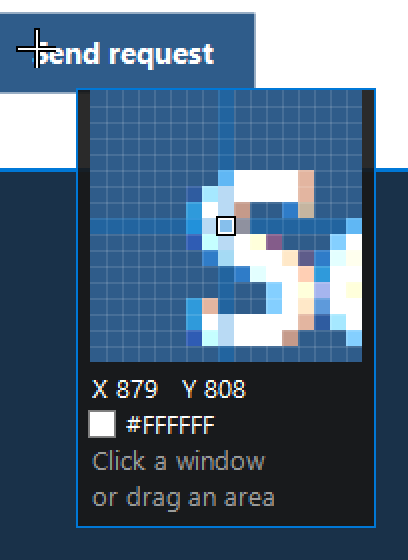
A magnifier next to the cursor shows the pixels around it, and the arrow keys move it by one pixel (ten with Shift), so a region lands exactly where you want it without a mouse.
Longer than the screen
Ctrl+Print Screen scrolls a page or list for you and stitches it into one image, so a small screen doesn't limit what you can capture.
Sharp at any scaling
Crisp at the 125 to 200% scaling laptops run at, and when you move between the laptop screen and an external monitor. Text follows Windows' own text size setting.
No need to look for the editor
After each capture a notification pops up in the corner of the screen. Click it and the capture opens in the editor: no folder to open, no file to find. In Settings you can turn the notification off, or have the editor open straight after every capture.
How it works
- Print Screen
- Hover to highlight a window and click to capture it, or drag a region.
- Ctrl+Print Screen
- Scrolling capture: click the page or list, and Rogeha Capture scrolls and stitches it. Sticky headers and footers are kept once.
- Shift+Print Screen
- The whole monitor under the mouse.
- Windows+Shift+S
- Since version 1.1, a window or region, like Print Screen, so a laptop's snip key works. Settings can give it back to the Snipping Tool.
- Esc
- Cancel.
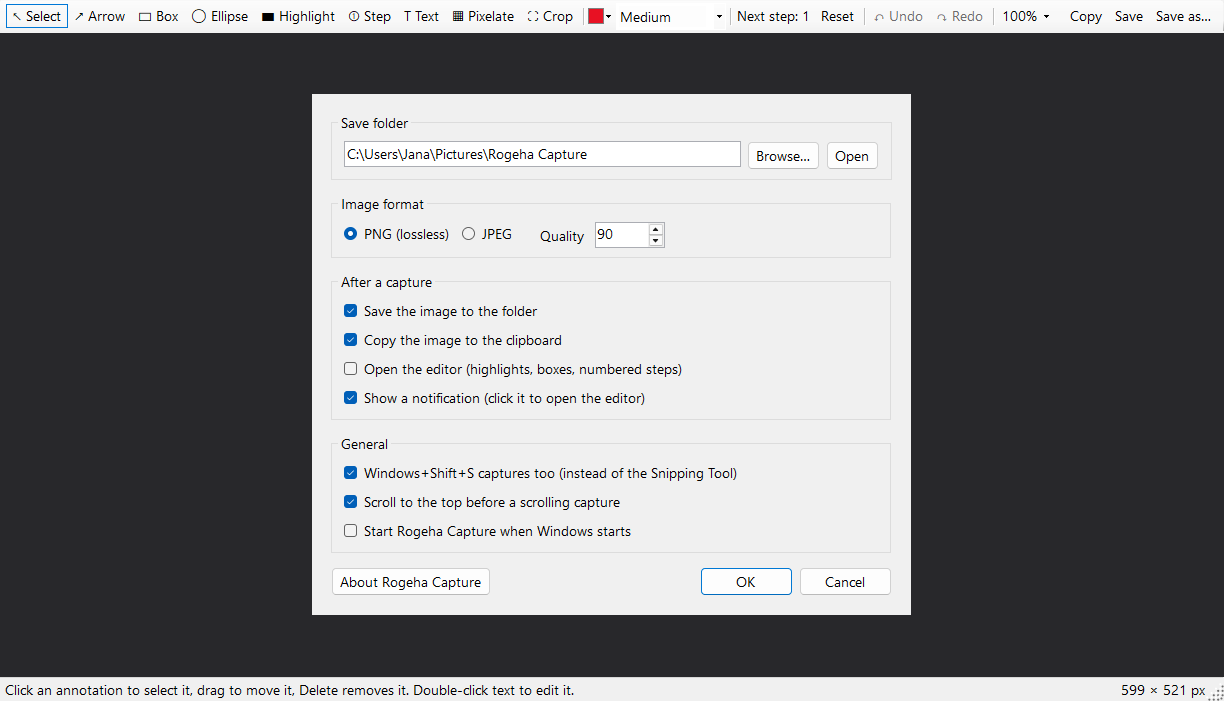
By default each capture is copied to the clipboard, ready to paste into a mail, a ticket or a chat, and saved as a PNG or JPEG named after the app you captured. Open it in the editor for what a screenshot needs to make its point: arrows, boxes, highlights, numbered steps, text, and pixelate for anything private, with crop and undo.
 Arrow
Box
Ellipse
Highlight
Step
Text
Pixelate
Crop
Arrow
Box
Ellipse
Highlight
Step
Text
Pixelate
Crop
Installs without admin rights
Rogeha Capture is distributed through the Microsoft Store. A Store app installs for your own Windows account, so it needs no administrator rights: on a work computer where you can't install programs yourself, you can still install Rogeha Capture, as long as your organisation allows the Microsoft Store. Updates come the same way, and "Start with Windows" works without admin rights too.
Under the hood
Rogeha Capture 2.0 is one small native Windows program, written in Rust and talking to Windows directly, with no runtime to install, no server and no network code. Being small is a design goal, not an accident.
| Version 1.1 | Version 2.0 | |
|---|---|---|
| Store download | 52 MB | 527 KB |
| Program | 133 MB installed, with .NET | 1.06 MB, nothing else |
| Memory, waiting in the tray | about 12 MB | 1.8 MB |
Light while it waits
All windows run on one thread, and the program hands memory back to Windows after start-up and after every capture, so between captures it sits in the tray at about 1.8 MB. Settings and About cost nothing until you open them, and the feature overview starts its browser engine, WebView2, only when it opens and ends it with the window.
Stitching by pixels
A scrolling capture joins frames by matching rows of pixels, never by trusting how far the page was told to scroll. It waits until two grabs 60 ms apart agree on 95% of their rows, so smooth scrolling has settled but a blinking cursor doesn't hold it up, ignores the scrollbar, and keeps a sticky header or footer once. Where rows don't line up, it never guesses.
A key, not a keylogger
The keyboard hook runs on its own thread and acts only on Print Screen and Windows+Shift+S, and on Esc while a capture runs. Every other key passes straight through and nothing is recorded. The scrolling progress panel is excluded from screen captures, so it never shows up in your image.
Edits you can take back
In the editor, shapes stay separate objects over the untouched screenshot until you save or copy, so every step can be undone. Copy puts the result on the clipboard as both bitmap and PNG, so it pastes cleanly into mail, tickets and chat.
Built for the Store
Packaged as MSIX with a per-user startup task. 2.0 keeps every identity of 1.1, so it arrived as an ordinary update: settings, notification choices, pins and start with Windows all carried over. 57 automated tests check the stitcher, the editor, the keyboard and the file names, and a smoke test opens every window off-screen.
One honest limit: stitching needs rows that match, so a page where most of the scrolling area moves by itself, a playing video say, may end a scrolling capture early. A capture also stops at 30,000 pixels.
Private by design
Rogeha Capture works offline. It collects no data and sends nothing over the internet: your screenshots stay on your PC, unless you paste or save them somewhere else. The one exception, from version 2.0.9, is the feature overview: opened from the tray menu, it loads this page from rogehastudio.com, as a browser would.
Read the app's privacy policy →
Where it stands
Rogeha Capture is in the Microsoft Store, free, since October 2026. It runs on Windows 10 (version 1809) and Windows 11, and updates arrive through the Store. The current version is 2.0.12, published on 18 October 2026: About now says plainly what goes online. Capturing and editing work offline, and only the feature overview loads a page, from rogehastudio.com.
Version 2.0.9, published the same morning, brought that overview: Feature overview in the tray menu shows this page in a window of the app, without opening a browser; links to rogehastudio.com stay in that window, and anything else opens in its usual app. And when Windows starts Rogeha Capture at sign-in, it starts quietly in the tray: no notification, and never the Settings window.
Version 2.0, published on 14 October 2026, rebuilt the whole app as a native program, so it starts instantly and the download is about 100 times smaller. Scrolling capture became faster and no longer repeats the end of pages that have animations on them, the tray menu and the editor's menus follow Windows' dark mode, and clicking a notification opens only the editor.
Version 1.1 added the screen-snip key (Windows+Shift+S) and sharper buttons at 150 and 200% display scaling.
A question, a problem or an idea? Write to support@rogehastudio.com.